This page demonstrates how to use Microsoft Research's (MSR) MapCruncher
to generate custom tile sets for use by the Google Map API. The licence for MSR
MapCruncher only permits the use of generated tiles for non-commercial use. You will find MapCruncher
at http://research.microsoft.com/mapcruncher/
. It will produce tile sets from various formats of source image, including PDF.
Bill Chadwick October 2007
STEP 1 - SOURCE A MAP
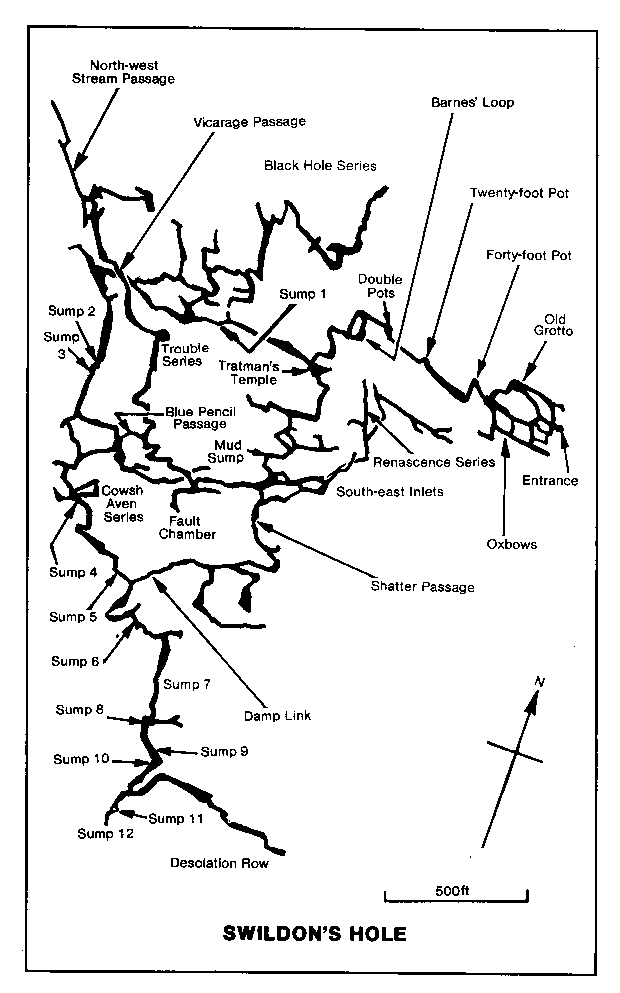
Here is a sample map that has been scanned from a book (with consent of the author).

STEP 2 - PREPARE YOUR MAP FOR CRUNCHING
The next step is to tidy up your source map with an image editing program. Its best
to rotate your map so that North points straight up the screen. If you want your
map background to be transparent, use png format and select the transparent colour
as the background. If your map is diagrammatic, like mine, rather than photographic,
its best to reduce it to 256 colours. Here is the sample
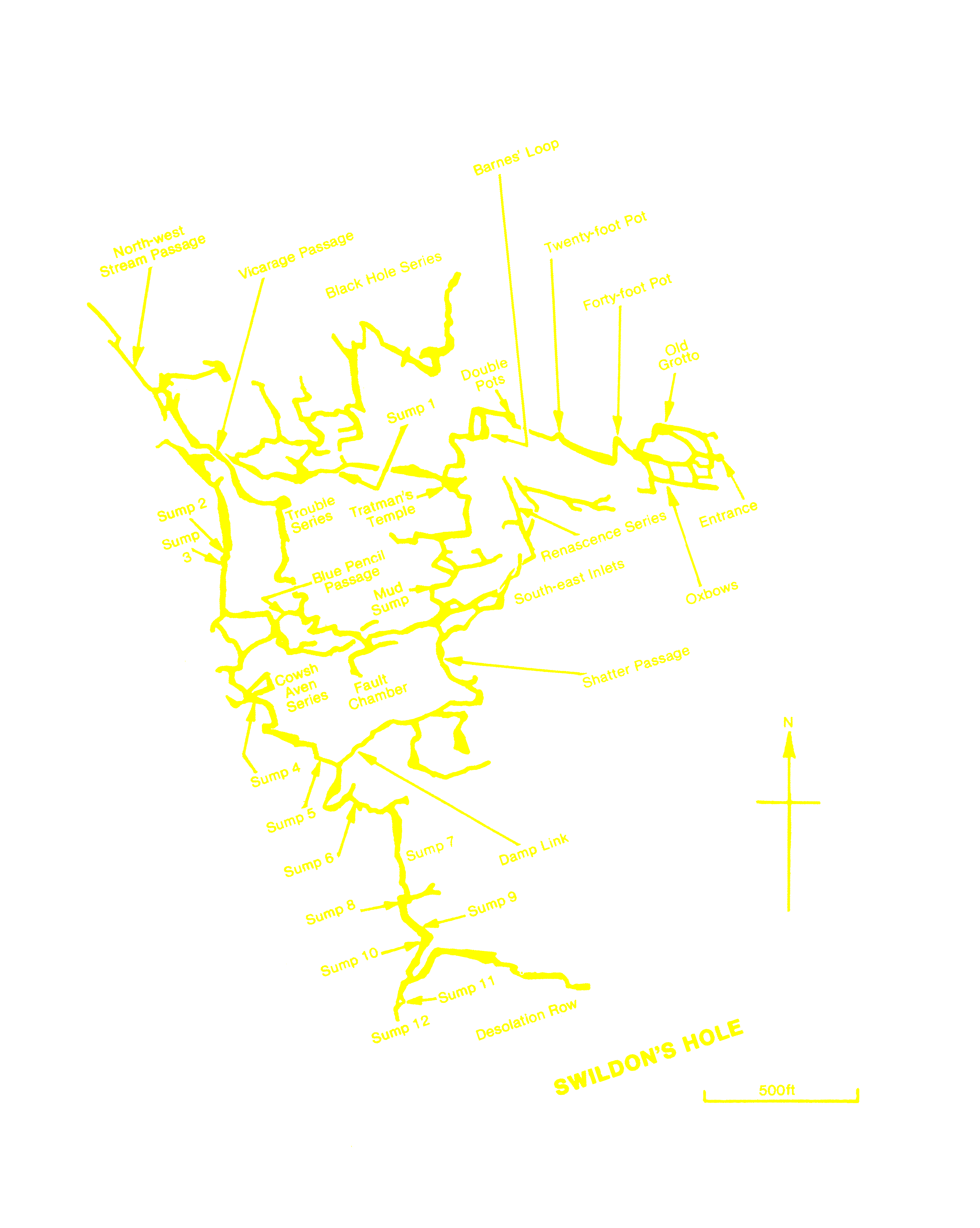
map above after it has been tidied up, yellow works well as on overlay on the satellite map.

STEP 2 - PRELIMINARY REGISTRATION WITH MAP CRUNCHER
Start up MapCruncher and use the File menu - New Mashup option . Next use the File
menu - Add Source Map option and load your tidied map.
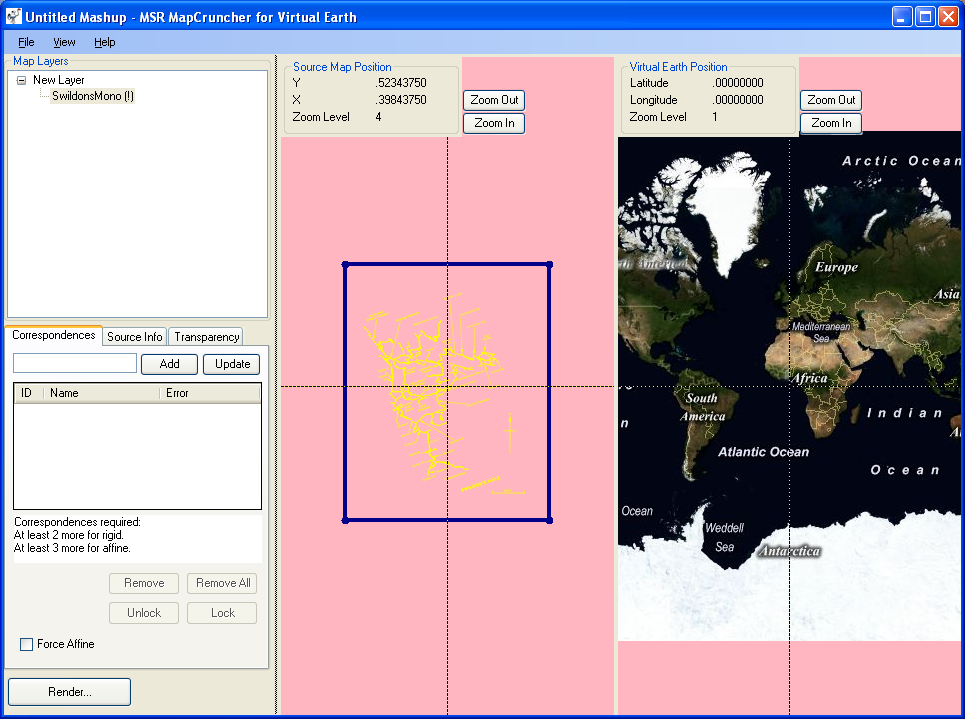
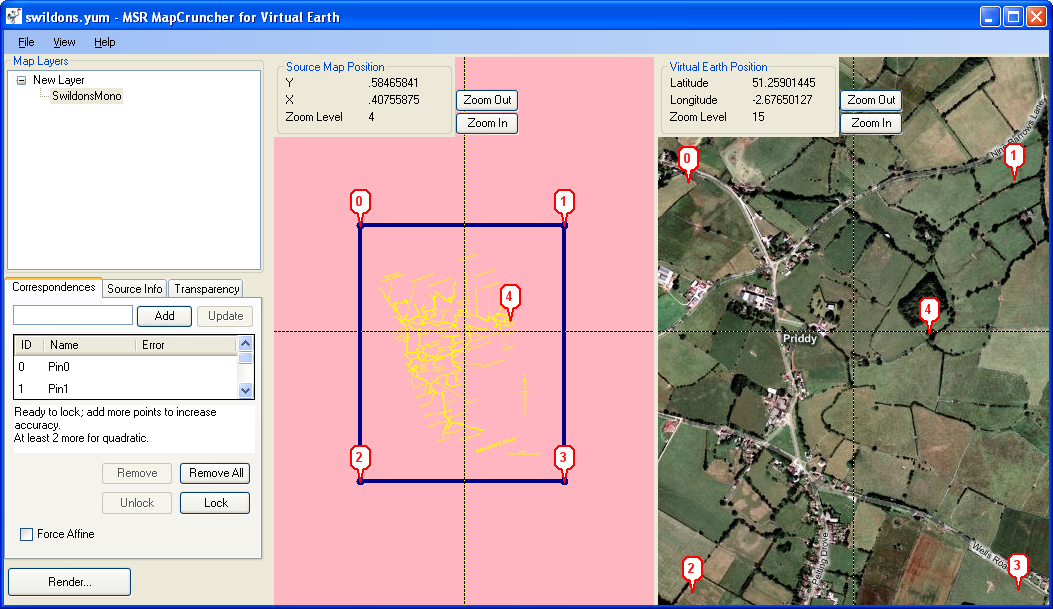
You MapCruncher window should now look something like this. MapCruncher uses
pink for transparent portions of your source image.

What you do next is set the source map cross hairs to several points on your map and the cross
hairs on the Virtual Earth (VE) map to the corresponding points on the ground. For
each correspondence,
press the Add button on the Correspondences tab to add correspondence Pins. Its
best to use about 6 Pins and include a Pin near each corner of your map. At this
stage your map and the VE map are not synchronised and you pan and zoom them independently.
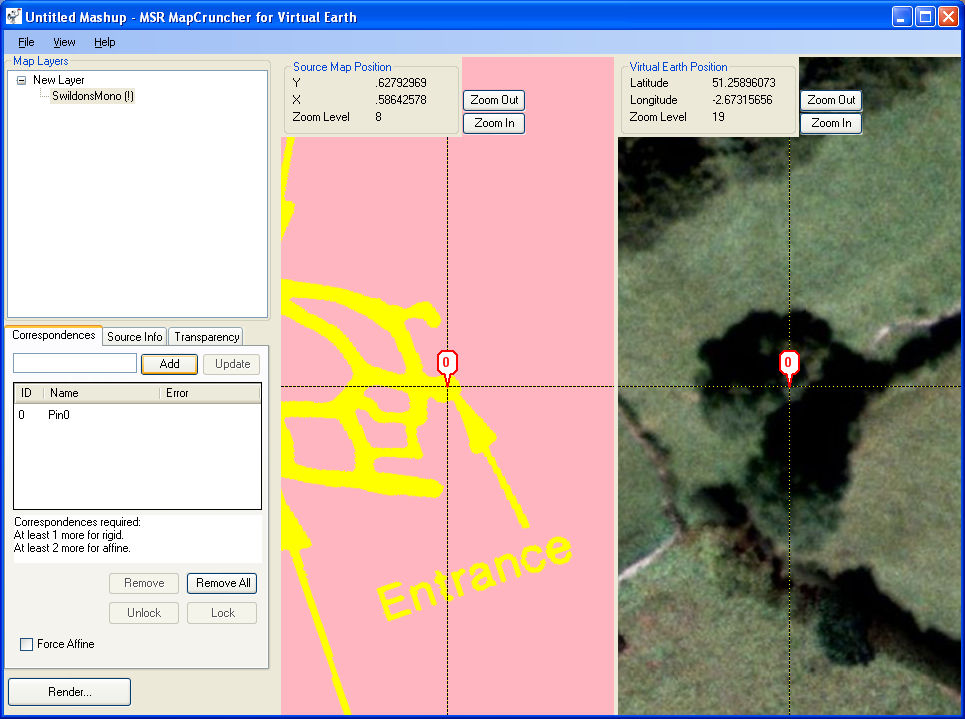
Now I have deliberately made this example difficult by using a cave! Only the entrance
sticks a chance of being visible on the map. The next image shows MapCruncher after
I have added the entrance marker. I happen to know that the cave entrance is under
this particular tree.

I then proceed to add some further correspondences, one at each corner of the source
map. The Pins are very carefully placed exactly on the corners of my source map but only
roughly placed on the VE map.

Now save your mashup (as a Yum file), close MapCruncher and proceed to the next
step.
STEP 3 - ACCURATE GEOREFERENCING
This step is optional but necessary if you can't set all your correspondences well
using MapCruncher. We need to work out the real world coordinates of all the Pins
on your source map in WGS84 Lat/Lon. To do this you need to know the size of your
image in pixels and the scale of your map in say metres per pixel. From one
known location on your map, the cave entrance in my case, we can then work out the coordinates
of each corner (having previously rotated the map so that
North is straight up).
For my sample map I get a set of UK Ordnance Survey grid coordinates which I can
convert to Lat/Lon. I use a Spread Sheet for this, here is the sheet for the current
example.
|
Entrance Eastings |
Entrance Northings |
|
353120 |
151310 |
|
|
|
|
Image Pixel Width |
Image Pixel Height |
|
3643 |
4565 |
|
Entrance Pixel X |
Entrance Pixel Y |
|
2676 |
1704 |
|
|
|
|
|
|
|
Scale Bar Feet |
Scale Bar Pixels |
|
500 |
568 |
|
|
|
|
Scale Bar Metres |
|
|
152.4 |
|
|
|
|
|
Metres Per Pixel |
|
|
0.268309859 |
|
|
|
|
|
|
|
|
Top Left East |
352402.0028 |
|
Top Left North |
151767.2 |
|
Top Right East |
353379.4556 |
|
Top Right North |
151767.2 |
|
Bottom Left East |
352402.0028 |
|
Bottom Left North |
150542.3655 |
|
Bottom Right East |
353379.4556 |
|
Bottom Right North |
150542.3655 |
|
|
|
|
|
|
|
|
|
|
Top Left Lat |
51.26301069 |
|
Top Left Lon |
-2.683591542 |
|
Top Right Lat |
51.26309161 |
|
Top Right Lon |
-2.669589905 |
|
Bottom Left Lat |
51.25199624 |
|
Bottom Left Lon |
-2.683428205 |
|
Bottom Right Lat |
51.25207713 |
|
Bottom Right Lon |
-2.669429913 |
|
Entrance Lat |
51.25896125 |
|
Entrance Lon |
-2.673241677 |
|
|
|
To do the conversion for the UK you can use the coordinate converter on the OS Web
Site at http://gps.ordnancesurvey.co.uk/convert.asp, or even just use the status
bar on my page at http://www.bdcc.co.uk/mendip.html
Having got good accurate Lat/Lon for our reference points we now edit them in to
MapCruncher's Yum file.
Open the Yum file with your favourite text editor. For each Pin you will find a
bit of XML like this
<PositionAssociation pinId="0" associationName="Pin0">
<SourcePosition>
<LatLonZoom zoom="9">
<LatLon lat="0.9998779296875"
lon="0" />
</LatLonZoom>
</SourcePosition>
<GlobalPosition>
<LatLonZoom zoom="9">
<LatLon lat="51.26301069" lon="-2.683591542"
/>
</LatLonZoom>
</GlobalPosition>
</PositionAssociation>
For each Pin, edit the values highlighted in red to the computed values, then save the Yum file. Of course if you have good WGS84 registration
coordinates for your map from a GIS system, (e.g. an ESRI world file, .jgw, .pgw
etc) you can use those figures.
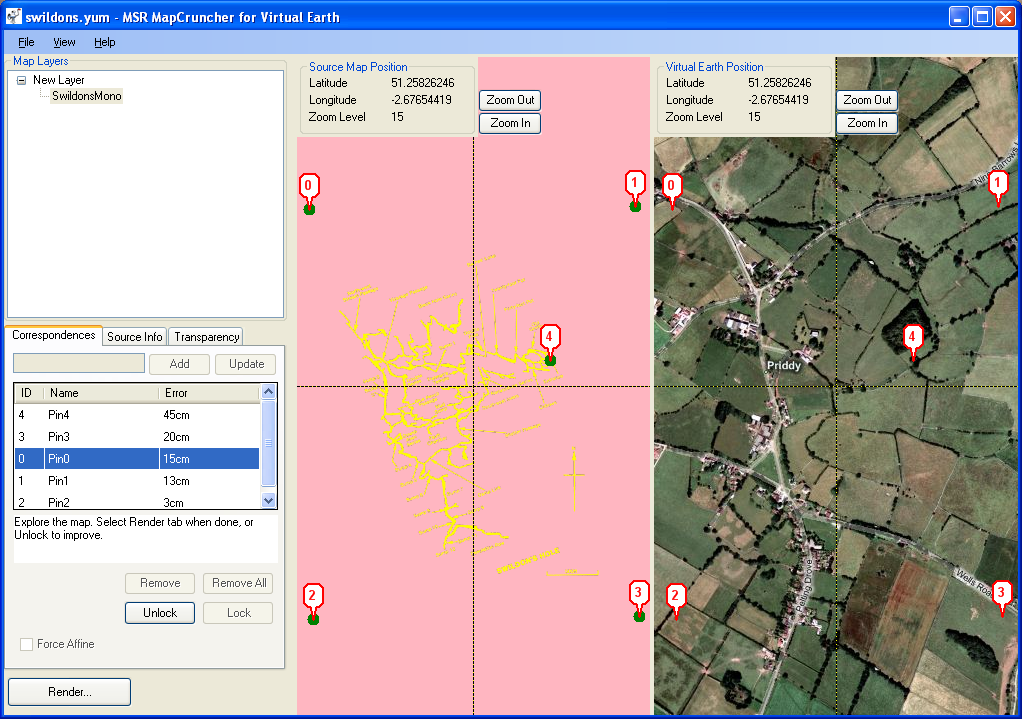
Finally reopen the Yum file with MapCruncher and press the 'Lock' button. You should
get something like this.

Ideally for a map on a similar scale to mine your error will be under 50cm (around
two pixels at Google zoom level 19).
STEP 4 - PRODUCING TILES
Now select the Source Info tab and set the 'Maximum (Closest) Zoom' to the maximum
zoom in you want for your map. For my example I use 19. If you have used a transparent
png as your source map, leave the Transparency tab alone, otherwise use it to select
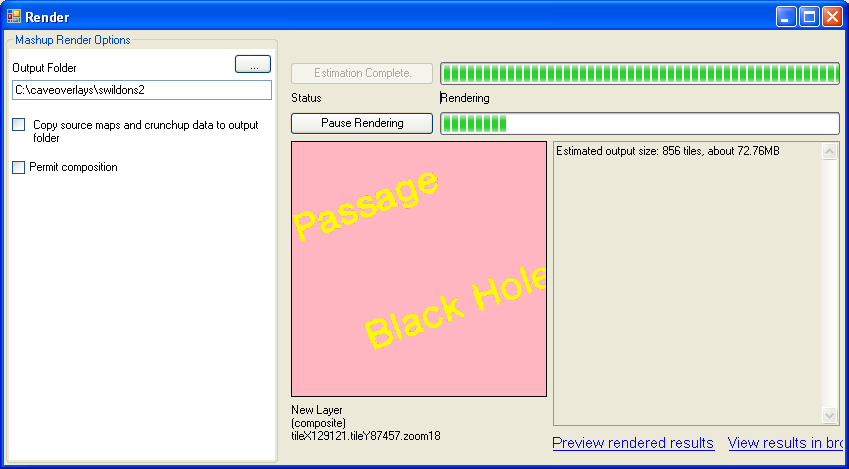
colours to make transparent. Next press the Render button to get the Render dialogue.
On this, select an output folder and then press the 'Start Estimating' button. Now
wait whilst MapCruncher does its clever stuff.

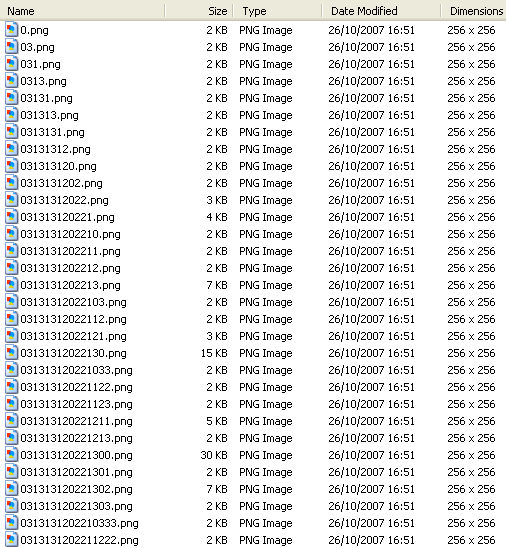
You will find your output tile set in a folder called 'Layer_NewLayer' in your selected
output folder something like this

To save server space and improve rendering speed its best to work with 8 bit / 256
colour
png tiles wherever possible. Its also worth running pngcrunch, http://pmt.sourceforge.net/pngcrush/
over the output tile set to shrink the tiles to a minimum size.
STEP 5 - GOOGLE MAPS CODE
Very happily, Google Maps and MS Virtual Earth use the same map projection and tiling
scheme. Maps start with one 256x256 pixel tile at zoom 0 with Lat/Lon 0,0 in its
centre, -90 Latitude at the bottom, +90 at the top, -180 Longitude at the left and
+180 Longitude at the right. At zoom 1 the world is divided into four tiles, then
16 at zoom 2 etc.
The MapCruncher tile file names have one digit for each zoom level and use a quadtree
format with the digits 0,1,2,3 ( see http://en.wikipedia.org/wiki/Quadtree ). It
turns out to be a simple matter to convert the x,y and zoom of a call on the GMap
getTileUrl function to a filename in this quadtree format. Here is the Java Script
code that does it.
function TileToQuadKey ( x, y, zoom){
var quad = "";
for (var i = zoom; i > 0; i--){
var mask = 1 << (i - 1);
var cell = 0;
if ((x & mask) != 0)
cell++;
if ((y & mask) != 0)
cell += 2;
quad += cell;
}
return quad;
}
Then for your GTileLayer use something like this, of course replacing the
URL with your own.
myLayer[0].getTileUrl = function
(a,b) {
return "http://www.bdcc.co.uk/cavelayer/" + TileToQuadKey(a.x,a.y,b) + ".png";
};
If your tiles are transparent PNGs then also include code like this.
if(navigator.userAgent.indexOf("MSIE")
== -1)
myLayer[0].isPng = function() {return true;};
To add your own map type
use code like this for a map with tiles between zoom levels 12 and 19.
var caveLayer = new
GTileLayer(new GCopyrightCollection(''),12,19);
caveLayer.getTileUrl = caveTiles;
caveLayer.getCopyright = function(a,b) {return "Irwin & Jarrett, BDCC,
MCG, Bill Chadwick 2007";};
caveLayer.isPng = function() {return true;};
var caveMap = new GMapType([caveLayer], G_SATELLITE_MAP.getProjection(), "Caves",{errorMessage:"no
caves here"});
caveMap.getTextColor = function() {return "#0000FF";};
map.addMapType(caveMap);
To make a hybrid with your map type and one of the existing maps, the satellite map in this example, use code like this.
var caveHybridLayer = new
Array();
caveHybridLayer[0] = G_SATELLITE_MAP.getTileLayers()[0];
caveHybridLayer[1] = new GTileLayer(new GCopyrightCollection('') , 12, 19);
caveHybridLayer[1].getTileUrl = caveTiles;
caveHybridLayer[1].getCopyright = function(a,b) {return "Irwin & Jarrett,
BDCC, MCG, Bill Chadwick 2007";};
caveHybridLayer[1].getOpacity = function () {return 0.5;};//of the non transparent
part cave
caveHybridLayer[1].isPng = function() {return true;};
var caveSatMap = new GMapType(caveHybridLayer, G_SATELLITE_MAP.getProjection(),
'Caves/Sat',{errorMessage:""});
caveSatMap.getTextColor = function() {return "#FFFFFF";};
map.addMapType(caveSatMap);
isPng should return true if you want to use transparent PNGs. With MSIE 6 you can only have transparency or opacity control, not both.
So if you want want to control opacity with MSIE 6 you should make isPng return false. At less than 100% opacity, MSIE 7 will put a small black halo around the opaque part of your transparent overlay.
As ever, Firefox does it better.
STEP 6 - YOUR MAP ON LINE
You need to upload your tiles to a folder on your web site
www.bdcc.co.uk/cavelayer in my case. If you have crunched more than one map you may want to omit some of the low zoom tiles that cover the same area on the ground. Finally here
is the finished online map. Drag the slider by the Caves/Sat map type button to adjust the cave overlay opacity on the Caves/Sat hybrid map. See this page's code (which works fine for Firefox and MSIE7) for more details.
For more samples of custom maps and overlays visit this map of Mendip caves.
For more of my Google Maps API demos please visit http://www.bdcc.co.uk/Gmaps/BdccGmapBits.htm